Procedures to Repeat All Item Labels in the Pivot Table - Office 2010 &
2013
(these functions are not available in 2003 or
2007)
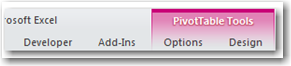
The Pivot Table View can be customized by utilizing the Pivot Table Tools
on the menu.

How to add Pivot Table Tools on your menu view

- Click
inside your Pivot Table view to display the PivotTable Tools on your
menu bar
- PivotTable
Tools has two selections - Options tab and Design tab.
-
Options
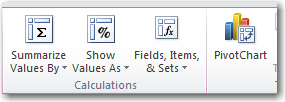
tab displays a toolbar with multiple "options" to view your
pivot table information. i.e. Pivot Charts
-
Design
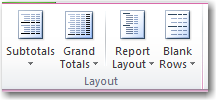
tab displays a toolbar with multiple ways to view data within the pivot
table.
Design tab also displays different Pivot Table Styles you
can use.
.
Note - this is available in 2010 & 2013 only.
|

Options tab view
Design tab view
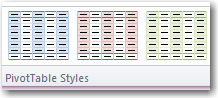
|
How to repeat item labels in your Pivot Table
- Item
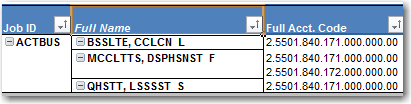
labels are displayed in the summary rows - not in details row.
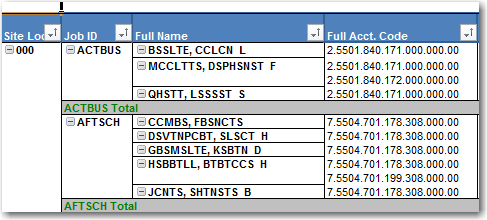
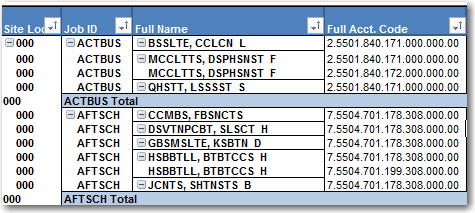
Example: ACTBUS is the Item Summary Label and all names within ACTBUS show
totals.
- To
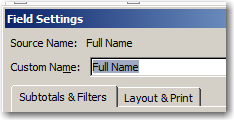
repeat the column heading in all detail rows - double-click on heading (Full Name
for this example) to display the Field Settings box.
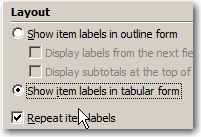
- Select
Layout & Print tab
- Click
on Repeat Item Labels
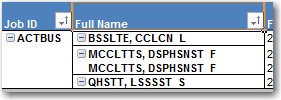
Full Name is displayed on each row after selecting Repeat
Item Labels.
|
|
How to repeat ALL item labels in your Pivot Table
|
Use the following method if you want to Repeat ALL Item
Labels.
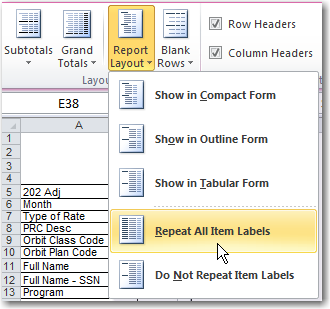
- Click on Design tab
under Pivot Table Tools
- Click on the Report
Layout filter
- Select Repeat All Item
Labels from the drop down menu.
- Your view will repeat
headings and rows for your pivot table. See example below
|
|
Was this article helpful?
0 out of 0 found this helpful
Have more questions? Submit a request